
How to reset Kaydoh account password

Anna-Liza Estoesta
Last Update 6 maanden geleden
Forgot your password or need to reset it? Follow the steps below to get back into your Kaydoh account.
What do you need?
- Computer or mobile device
- Access to the email address associated with your Kaydoh account
What to do?
- Read (step by step)
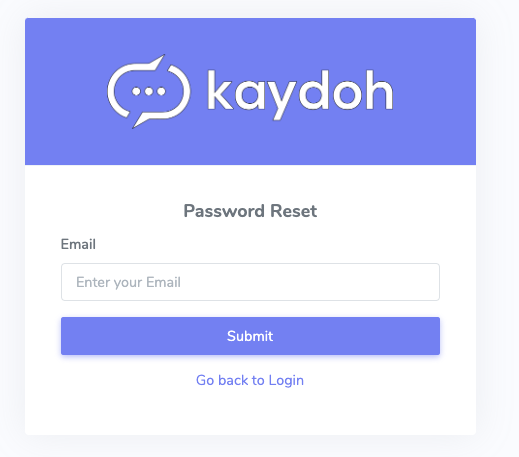
Step 1 — Go to the Kaydoh password reset page:
https://dashboard.kaydoh.com/password/reset
Step 2 — Enter the email address you used to sign up for Kaydoh and click Send Reset Link
Step 3 — Check your email inbox for a password reset message from Kaydoh. If you don't see it within a few minutes, check your spam or junk folder.
Step 4 — Click the reset link in the email and follow the prompts to create a new password
Step 5 — Once your new password is saved, return to https://dashboard.kaydoh.com and log in with your new credentials
💡 Already logged in and want to change your password?
If you know your current password and just want to update it, use the change password flow instead:
How To Change Password While You're Logged In — https://help.kaydoh.com/article/how-to-change-password-while-you're-logged-in
Still can't log in?
If you don't receive the reset email or continue having trouble accessing your account, contact our support team via live chat and we will assist you directly.
Internal tags
- How to change the password
- Forgot my password
- Where can I get a new password change link
- Want to reset the password
- Resetting Your Password
- reset password
- how to reset password on kaydoh
- password change
- change password
How can I reset my Kaydoh account password?
What are the steps to change my Kaydoh account password?
How do I recover my Kaydoh account password?