
Adding Custom Domain To Page

shuvo
Last Update 5 maanden geleden
Adding a custom domain allows you to use a personalized URL for your website, making it easier to share and remember. For example, after creating a website for a property at 321 Main Street, you can assign a custom domain to use as the website URL.
Note: Kaydoh supports root domains and subdomains only — for example 321mainst.com or listings.mydomain.com. Subdirectory-style URLs such as mydomain.com/321mainst are not currently supported.
Read – Tutorial ( step by step )
Do you already own a domain, or do you need to buy one?I already own a domain and want to connect it to Kaydoh → This article is not for you. Go here instead: How To Connect Your Own Domain — https://help.kaydoh.com/article/how-to-import-your-domain
I want to purchase a new domain through Kaydoh → You're in the right place. Follow the steps below.
Not sure which option is right for you? See: Purchasing a domain in Kaydoh vs Importing a domain in Kaydoh — https://help.kaydoh.com/article/purchasing-a-domain-in-kaydoh-vs-importing-a-domain-in-kaydoh
STEP 1
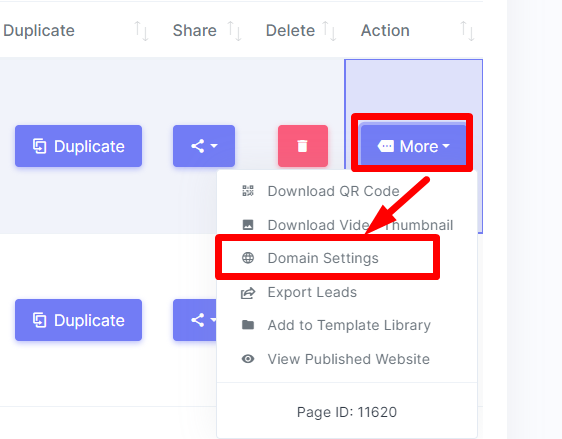
Navigate to “Websites” in your dashboard and select the existing website where you want to add a custom domain. Under the Action column, open the submenu and select “Domain Settings”.
STEP 2
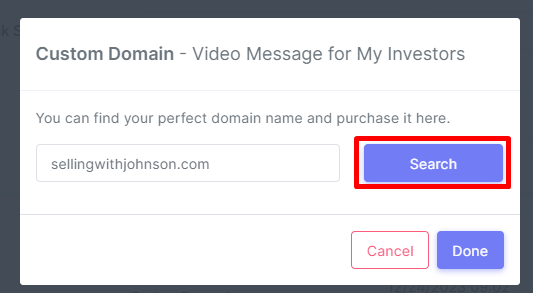
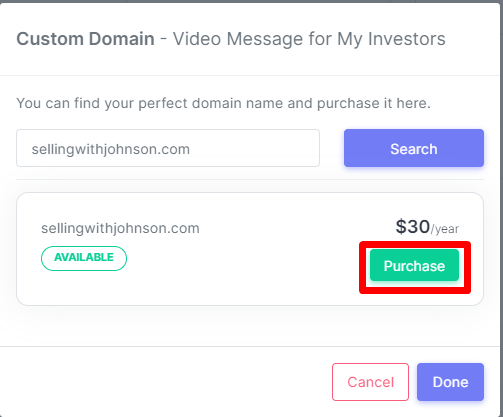
Enter the custom domain to search for its availability. After clicking on “Search” , you will see confirmation if that domain is available. If it is available, you will see a green button, "Purchase". Click on that button to register the domain and purchase it with the price indicated on screen. The price you see will depend on the subscription plan you are on as it will vary.
STEP 3
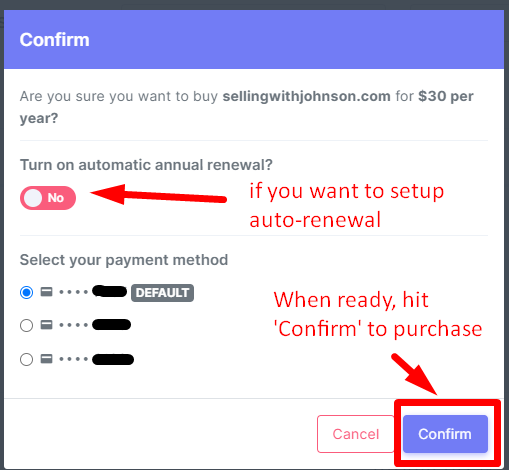
Click "Confirm" when ready to purchase.
STEP 4
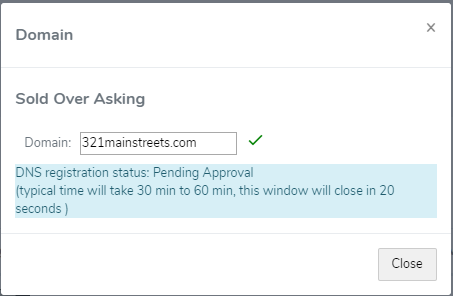
Once you confirm the order by clicking “Confirm,” a popup will appear. Domain registration usually takes about 30–60 minutes to complete. An email from ‘[email protected]’ will be sent to you after domain is fully activated.
STEP 5
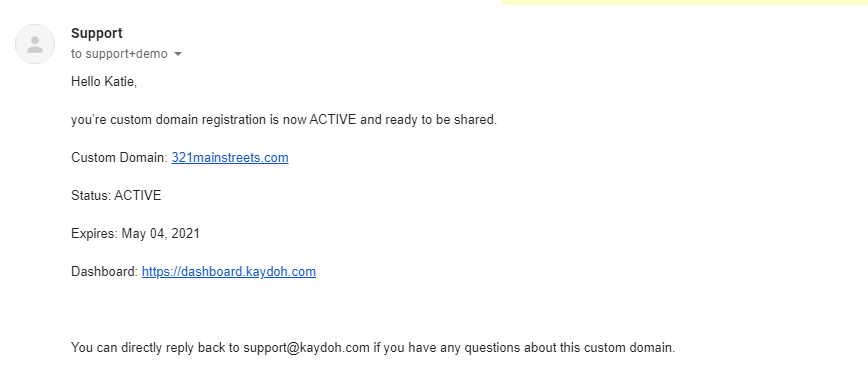
When custom domain is active and registered, you’ll receive an email similar to the picture below. Once the custom domain is active, you can share the website link on social media or with clients.

internal tags
how to add custom domains
how to customize kaydoh page url
how to simplify the url of a kaydoh page
kaydoh page url shortener
How can I add a custom domain to my page?
What are the steps to link a custom domain to a page?
How do I set up a custom domain for my page?